Plumbing Answering Service Integrations
Our plumbing answering service integrations currently cover Google Calendar booking, with call details delivered by email and available in your dashboard. Direct field service software connections are planned by demand. Try the browser demo to hear the intake first.
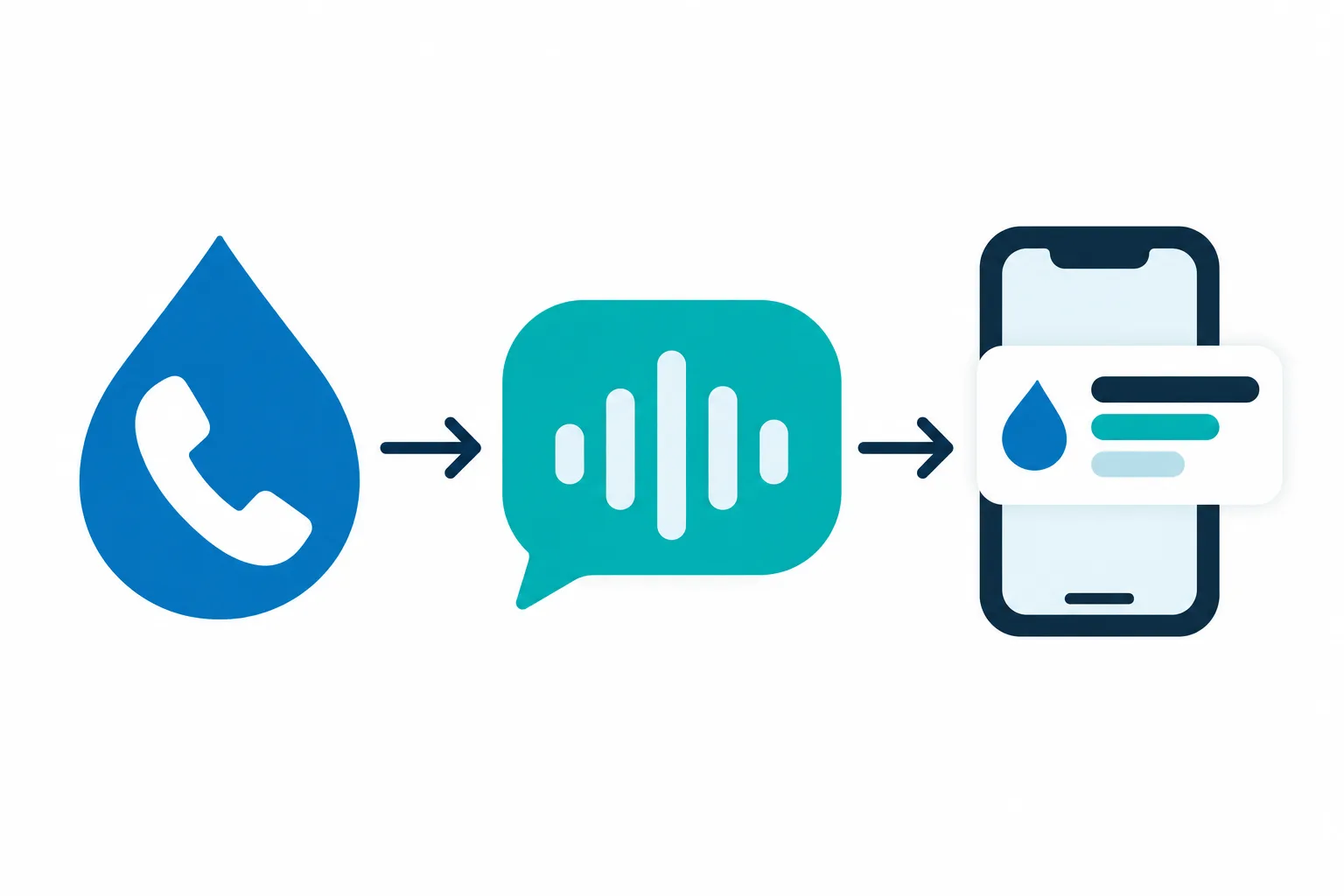
Use email summaries, your dashboard and Google Calendar
Your receptionist sends call summaries by email, keeps call records in the dashboard and can book appointments into Google Calendar. You can also choose callback intake instead of booking.
- Email detailsGet a summary, urgency tag, transcript and recording after a call.
- Dashboard recordsReview calls, recordings, transcripts, usage and settings in one place.
- Calendar bookingChoose Google Calendar appointments or have your receptionist collect callback details.
Keep reading
Email and app push notifications carry the call summary, urgency tag, transcript and recording. A daily digest email gives you another way to review messages when you are back at the desk.
For appointments, your receptionist can book into Google Calendar. If you prefer to review a drain cleaning request or water heater inquiry before scheduling, choose callback intake. The receptionist takes the details for you to follow up.
Use the dashboard to listen to the recording, read the transcript and change settings by telling the AI what you want. See the appointment booking options before deciding how to handle scheduling.
Check the status of your field service software
Direct connections to ServiceTitan, Housecall Pro, Jobber, Workiz and FieldPulse are not live. Tell us which software you use so we can understand demand for future connections.
- ServiceTitan and Housecall ProCall summaries are available for you to enter manually.
- Jobber and WorkizUse the intake details when you create or update your records.
- FieldPulseReview the emailed summary before entering the caller's request into your system.
Keep reading
For each of these products, the current workflow is manual: read the summary and enter the useful details into your software. There is no direct connection moving a call record or appointment into these systems.
That distinction matters when you test the service. A Google Calendar appointment is a calendar booking; it does not mean a job has been created in your field service software. Choose callback intake if your office needs to create the job before confirming a visit.
Email [email protected] with the product you use and the task you want a future connection to handle. We plan direct connections according to demand.
Move call details into your existing workflow
Review the call summary, check the transcript when needed and enter the job details into your software. Your receptionist can collect callback requests while your office handles scheduling.
- Read the requestCheck what the caller needs and the urgency tag before responding.
- Verify unclear detailsUse the transcript or recording to review the caller's own words.
- Keep your processEnter the details into your software and arrange the next step.
Keep reading
Suppose a caller reports a leaking water heater while you are on another job. Your receptionist takes the intake details and sends an alert with an urgency tag. You can review that summary before returning the call and entering the request into your usual system.
For an urgent request, configure a warm transfer or page to your on-call person. They can receive the escalation while the call record remains available for review. Routing follows the order you set.
Request a free trial for setup; we email your sign-in link when the trial is ready so you can choose appointment booking or gathering details for a callback. Make a test call before forwarding goes live to check that the intake supports your office routine.
Tell us which connection would help your shop
Customer demand guides which direct software connections we plan. Tell us what you use and what you would want transferred so we can understand the work involved.
- Name your softwareTell us which product your office uses to manage plumbing jobs.
- Describe the taskExplain which call details you would want moved into that product.
- Explain your processTell us where staff review a request before confirming an appointment.
Keep reading
Send your request to [email protected] with the software name and a concrete example. You might want a new inquiry entered for office review, or appointment details carried into an existing job record. Describe your desired outcome so we understand what would make the connection useful.
Requests help us assess demand; they do not establish a release date or an available feature. Base your trial decision on the email alerts, dashboard and Google Calendar booking available with the service.
Use the browser call demo to test how the receptionist gathers information. Then consider where those details belong in your current workflow and what your staff would still enter themselves.
Common questions
Can I use this with the plumbing software I already have?
You can use the call details alongside your existing software by entering them yourself. Direct field service software connections are not available at launch. Your receptionist sends email and app push alerts with the summary, urgency tag, transcript and recording, so your office has information to review before creating or updating a job.
Can it book appointments into Google Calendar?
Yes. Your receptionist can book appointments into Google Calendar, or collect the request for your callback if you prefer. Choose the approach that fits how your office schedules plumbing work. If you need to review a water heater request before offering a visit, callback intake lets you handle that decision after reading the summary.
How do I get my messages when I am away from the office?
Alerts arrive by email and app push notification with the call summary, urgency tag, transcript and recording. You also receive a daily digest email. The dashboard keeps calls available for review, along with usage and settings. You can read the summary first, then check the recording when a caller's request needs closer attention.
Can it transfer urgent calls to my on-call plumber?
Yes. You set who receives urgent calls and the order for escalation. With a warm transfer, the on-call person hears a short summary and presses 1 to accept. You can also choose a page. Configure urgency around your shop's policies so the receptionist can flag requests and route them to the person you selected.
How can I request a direct connection to my software?
Email [email protected] with the software you use and the work you want a connection to handle. Include the details you currently enter after a call and where they belong. We plan direct connections by demand. A request helps describe your needs, but it does not mean that connection is available or scheduled for release.
Try a plumbing intake call in the demo
Talk to the receptionist in your browser without signing up. Then request a free trial to test call intake against your office workflow; we email your sign-in link when ready.
Try the burst-pipe call Try it free
Free trial: 14 days, up to 100 minutes (on request)