How It Works: Set Up Your Plumbing Receptionist
Your AI receptionist answers forwarded calls using the services, hours and call rules you give it. We guide you through setup and a test call. Start by trying a plumbing scenario in the browser demo.
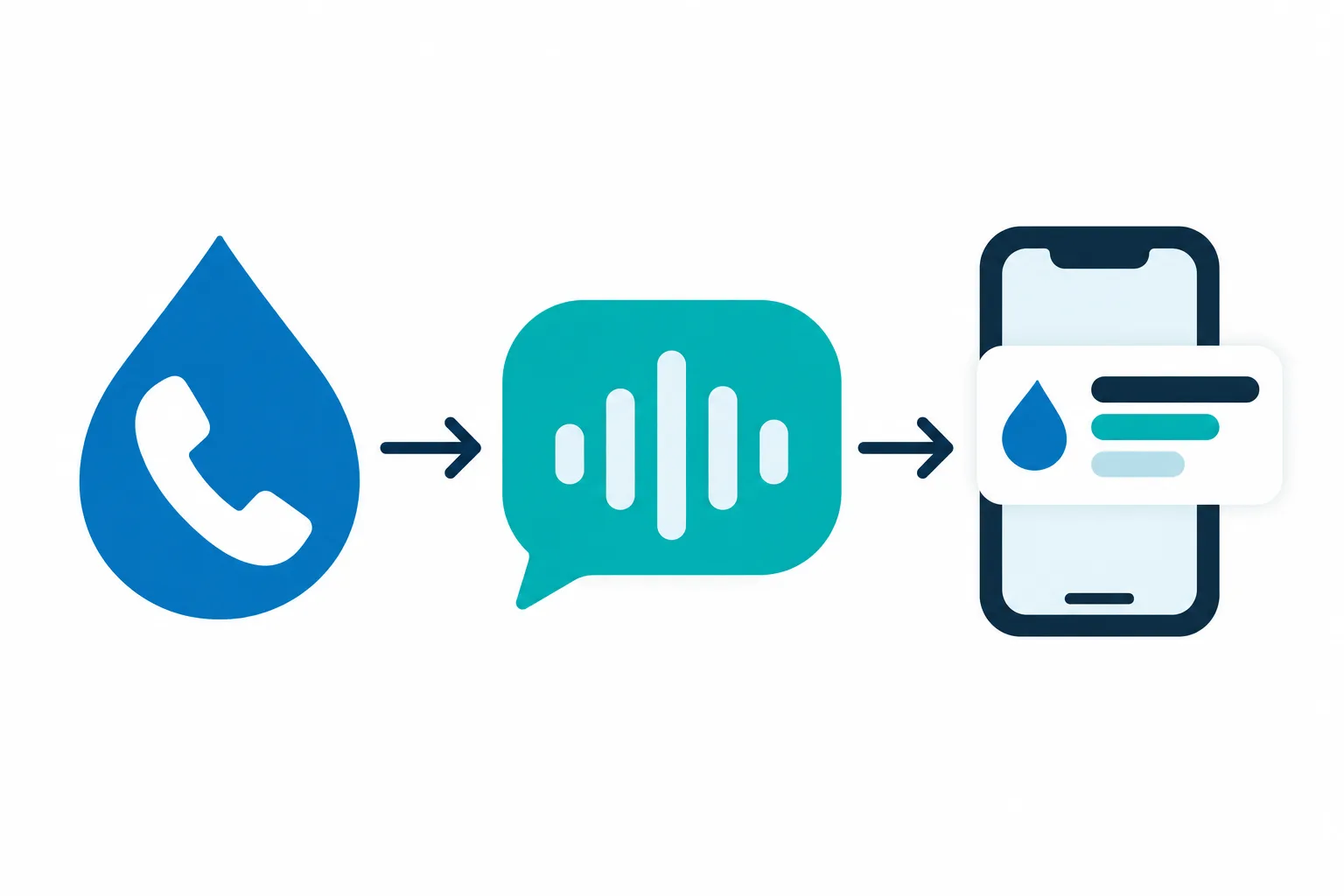
The four steps
- Forward your numberChoose which business calls will reach your receptionist, using the forwarding guide for your carrier or phone system.
- Answer as your businessYour receptionist introduces itself as a virtual assistant, gives the recording notice and asks your plumbing intake questions.
- Receive alerts and bookingsGet email and app push notifications, with appointment booking in Google Calendar or details for your callback.
- Test, then go liveMake a test call to check your setup before switching on forwarding for your callers.
Choose All Calls, No-Answer, Busy or After-Hours Forwarding
You keep your business number and choose when calls forward to your receptionist. Send all calls, or use forwarding for no-answer, busy or after-hours coverage.
- Keep your numberCustomers continue calling the business number they already have.
- Choose your coverageForward calls throughout the day or only when you need help.
- Follow your guideUse the forwarding steps for your carrier or phone system.
Keep reading
Forwarding sends calls from your existing business number to the local number we provide. During setup, choose whether your office should answer first or whether the receptionist should take the call from the start.
An owner working alone might forward all calls while on jobs. An office with a dispatcher might choose busy or no-answer forwarding, then use after-hours coverage when the desk closes. Your receptionist answers once calls reach it; the forwarding setup determines which calls arrive. We provide the carrier or phone-system guide so you can check that route before going live.
Hear What Your Receptionist Says and Asks
Your receptionist answers as your business, identifies itself as a virtual assistant and says the call is recorded. It then asks about the plumbing problem and flags urgency.
- Clear openingCallers hear the virtual-assistant and recording notices at the start.
- Plumbing intakeYour receptionist gathers the problem details and follows your service rules.
- Urgent routingEscalation follows the contacts and order you set during onboarding.
Keep reading
The onboarding chat teaches your receptionist your services, service area, hours, price policy and urgency rules. Your website provides further business information. A drain clog quote call can follow your no-quote policy, while a reported burst pipe can trigger your urgent-call route.
For urgent calls, choose a warm transfer or a page to your on-call person. With a warm transfer, that person hears a short summary and presses 1 to accept. For a gas smell or flooding near electricity, the safety script directs the caller to get everyone out and call 911 or the utility from outside, then alerts you.
Get Call Details by Email, App and Dashboard
You receive email and app push alerts for calls, with a summary, urgency tag, transcript and recording. Bookings go into Google Calendar when you choose appointment scheduling.
- Call alertsEmail and app push notifications bring the conversation details to you.
- Booking choiceUse Google Calendar appointments or collect details for a callback.
- Daily reviewFind calls in your dashboard and read the daily digest email.
Keep reading
An alert gives you the main request and urgency tag so you can decide what needs attention. Open the transcript to read the exchange or play the recording to hear the caller's description. Your dashboard keeps call records alongside usage and settings.
For appointment requests, decide whether the receptionist should book into Google Calendar or take a message for your team to arrange the visit. The daily digest email gives you another way to review calls. If your dispatcher uses other business software, they can enter the supplied summaries there; direct software connections are planned by demand.
Test Your Call Setup and Change Rules Later
A test call lets you check the greeting, intake and urgent-call route before customers reach your receptionist. Later, tell the AI in plain words what settings to change.
- Try your scenariosAsk about a service, a booking and an urgent problem.
- Check the handoffReview the call alert and test your chosen urgent-call route.
- Update your rulesTell the AI when hours, policies or on-call contacts change.
Keep reading
Use the test call to act as a customer with a real request your office handles. Ask about a leaking water heater, describe a drain problem or request an appointment. Then check whether the summary contains what your team needs for the next step.
Review your configured price policy and urgent-call contacts before enabling forwarding. After setup, you can change settings through plain-language instructions to the AI. We also offer fictional plumbing demo scenarios so you can hear the call flow before starting setup. For your own version, request a free trial; we email your sign-in link when the trial is ready.
Common questions
Can I use the business phone number printed on my trucks?
Yes. Keep the number your customers know and forward it to the local number we provide. You decide whether to forward all calls or only no-answer, busy or after-hours calls. Use the supplied forwarding guide and make a test call before opening that route to customers.
How does the AI learn what my plumbing business does?
You answer about 10-15 questions in an onboarding chat, and your receptionist also learns from your website. The chat covers services, area, hours, price policy and urgent-call contacts. Give it clear boundaries, such as services you do not offer or questions your office must answer itself.
Will the greeting tell callers they are speaking with AI?
Yes. At the start of the call, your receptionist says it is a virtual assistant and that the call is recorded. Those notices stay on. You can hear this opening in the browser demo, then test how the receptionist handles your own business information during setup.
What happens when a caller asks something it cannot answer?
Your receptionist takes a message for your team when the answer falls outside the information you supplied. Set clear service and pricing rules during onboarding so callers get your stated policy. Review the transcript and summary, then add useful business information through the settings chat.
How will an urgent plumbing call reach my on-call person?
You choose a warm transfer or a page and set the contact order. During a warm transfer, your on-call person hears a short summary and presses 1 to take the call. Test the route with your team so they know what to expect when an urgent request arrives.
Can callers speak Spanish during the call?
Yes. Your receptionist speaks English and Spanish, and callers can switch between them during a conversation. The same business information and call rules guide intake in either language. Try a Spanish-speaking caller scenario in the browser demo to hear the exchange before setting up your account.
Try a Plumbing Call Before You Set Up
Open the browser demo without signing up. Describe a plumbing problem, hear the response, then request a free trial to set your own business rules; we email your sign-in link when ready.
Try the burst-pipe call Try it free
Free trial: 14 days, up to 100 minutes (on request)